
In the first part of this series, we introduced Linux and why it is a great operating system to learn. Now, in Part 2, we will explore the Linux file system, its structure, and how to navigate it effectively.
The Linux File System Structure
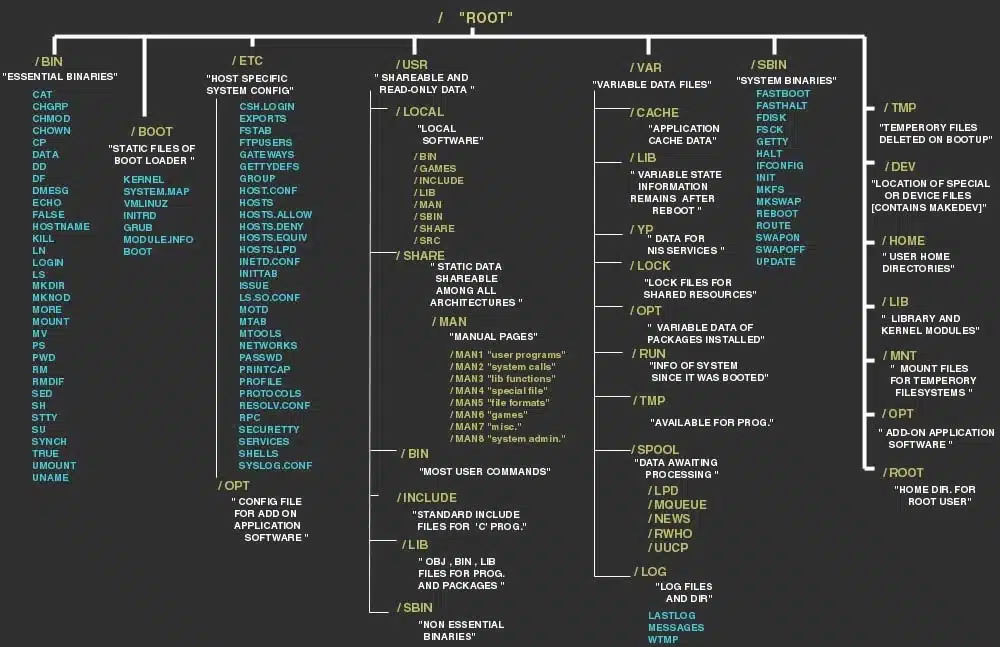
Unlike Windows, where files are stored across multiple drives (C:, D:, etc.), Linux follows a hierarchical file system. Everything starts from the root directory (/), and all files and directories branch out from there.
Here is an overview of the most important directories:
/(Root Directory) – The base of the file system./bin– Essential binaries and command-line programs./boot– Contains bootloader files and the Linux kernel./dev– Device files, including hard drives and peripherals./etc– System configuration files./home– Home directories for users./lib– Shared libraries required by system programs./mnt– Mount point for temporary file systems./opt– Optional software packages./proc– Virtual file system for system processes./root– Home directory for the root user./sbin– System binaries (commands for system administrators)./tmp– Temporary files./usr– User-installed applications and files./var– Variable files like logs and caches.
Navigating the Linux File System
To move around the Linux file system, you need to be comfortable with the command line. Below are some essential commands:
Viewing and Navigating Directories
pwd– Displays the current directory path.ls– Lists files and directories.cd <directory>– Changes to the specified directory.- Example:
cd /home/user/Documents
- Example:
cd ..– Moves up one level in the directory tree.cd /– Moves to the root directory.
File and Directory Management
mkdir <directory>– Creates a new directory.- Example:
mkdir myfolder
- Example:
rmdir <directory>– Removes an empty directory.rm -r <directory>– Deletes a directory and its contents.touch <file>– Creates a new empty file.- Example:
touch myfile.txt
- Example:
cp <source> <destination>– Copies files and directories.mv <source> <destination>– Moves or renames files and directories.rm <file>– Deletes a file.
Viewing File Contents
cat <file>– Displays the file's contents.less <file>– Views the file page by page.head <file>– Shows the first 10 lines of a file.tail <file>– Shows the last 10 lines of a file.
File Permissions and Ownership
Each file and directory in Linux has a set of permissions that define who can read, write, and execute them. Use the ls -l command to check permissions:
Example output:
-rw-r--r-- 1 user user 4096 Jan 1 12:00 myfile.txt
Breakdown:
rw-(Owner: Read & Write)r--(Group: Read only)r--(Others: Read only)
Changing Permissions
Use the chmod command to modify permissions:
chmod 755 myscript.sh– Gives execute permission to the owner, and read/execute to others.chmod +x myscript.sh– Adds execute permission to a script.
Changing Ownership
Use the chown command to change file ownership:
chown user:group myfile.txt– Assigns the file to a new owner and group.
Conclusion
Understanding the Linux file system and how to navigate it is crucial for anyone learning Linux. In the next part of this series, we will dive deeper into Linux package management and how to install software efficiently.
Stay tuned for Linux 101: Part 3 – Managing Software Packages in Linux!

0 comments:
Post a Comment