
In this ninth part of our Linux 101 series, we will explore Backup and Recovery Strategies to help protect important files, ensure business continuity, and restore data in case of failure.
Why Backup is Important
Regular backups help:
- Protect against accidental file deletion.
- Recover from system crashes or hardware failures.
- Defend against ransomware and data corruption.
- Maintain system configurations and logs.
Types of Backups
- Full Backup – A complete copy of all data.
- Incremental Backup – Saves only changes since the last backup.
- Differential Backup – Saves changes since the last full backup.
- Snapshot Backup – Captures the system state at a given moment.
Common Linux Backup Tools
| Tool | Description |
|---|---|
tar |
Archive files and directories |
rsync |
Sync files between locations |
rsnapshot |
Automated incremental backups |
borg |
Efficient deduplicating backups |
Timeshift |
System snapshots (best for desktops) |
dd |
Clone entire disks or partitions |
Bacula |
Enterprise backup solution |
Duplicity |
Encrypted remote backups |
Creating Backups with tar
tar (Tape Archive) is a simple tool to create compressed backups.
1. Backup a directory:
tar -czvf backup.tar.gz /home/user/
2. Extract a backup:
tar -xzvf backup.tar.gz
3. Backup only modified files:
tar -czvf backup.tar.gz --newer-mtime='2024-01-01' /home/user/
Synchronizing Backups with rsync
rsync is a powerful tool for file synchronization and backups.
1. Copy files to a backup directory:
rsync -av /home/user/ /backup/
2. Backup files to a remote server:
rsync -avz /home/user/ user@remote-server:/backup/
3. Perform incremental backups:
rsync -av --delete /home/user/ /backup/
Creating System Snapshots with Timeshift
Timeshift is useful for rolling back to a previous system state.
sudo timeshift --create --comments "Before system update"
Cloning Disks with dd
The dd command can clone entire disks or partitions.
1. Clone a disk:
sudo dd if=/dev/sda of=/dev/sdb bs=4M status=progress
2. Create a disk image:
sudo dd if=/dev/sda of=backup.img bs=4M status=progress
3. Restore from a disk image:
sudo dd if=backup.img of=/dev/sda bs=4M status=progress
Automating Backups with Cron Jobs
You can schedule backups automatically using cron.
1. Edit the crontab:
crontab -e
2. Add a daily backup job (runs at 2 AM):
0 2 * * * rsync -av /home/user/ /backup/
Disaster Recovery Strategies
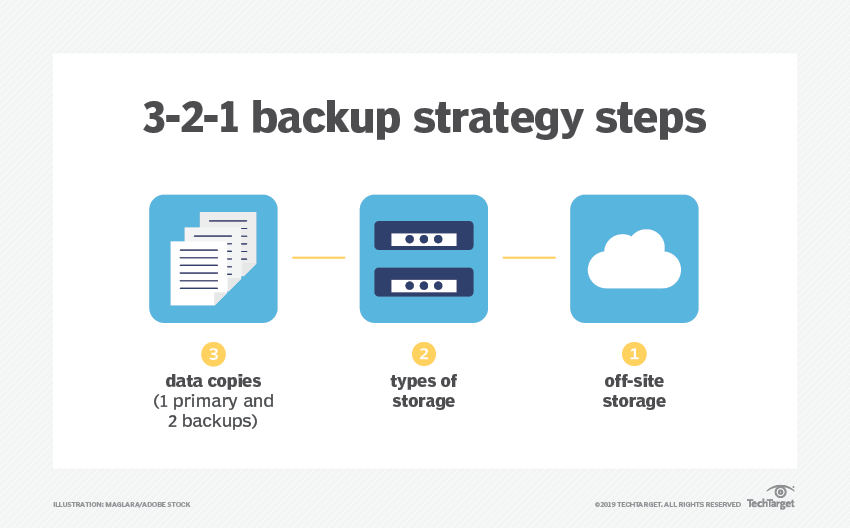
- Store backups in multiple locations (local, remote, cloud).
- Use encryption to protect sensitive data.
- Test backups regularly to ensure they work.
- Have a recovery plan documented for quick action.
- Create bootable recovery media using tools like
RescuezillaorSystemRescueCd.
Restoring a Linux System from Backup
- Restore files manually from a tar archive:
tar -xzvf backup.tar.gz -C / - Restore system snapshots using Timeshift:
sudo timeshift --restore - Restore from a remote backup:
rsync -av user@remote-server:/backup/ /home/user/
Conclusion
A solid backup and recovery strategy is essential for any Linux system. In the next part, we will explore Linux for Cybersecurity & Ethical Hacking, where we discuss security tools and techniques.
Stay tuned for Linux 101: Part 10 – Linux for Cybersecurity & Ethical Hacking!

0 comments:
Post a Comment