Sunday, September 1, 2024

Linux 101: Part 4 - User and Permission Management in Linux


In the previous parts of our Linux 101 series, we covered the basics of Linux, the file system, and package management. Now, in Part 4, we will focus on user and permission management—essential for maintaining system security and access control.

Understanding Users and Groups

Linux is a multi-user operating system, meaning multiple users can access the system with different permission levels. Users are managed through:

  • User accounts: Each user has a unique ID (UID) and home directory.
  • Groups: A collection of users with shared permissions.
  • Root user: The superuser with full administrative privileges.

Managing Users

1. Adding a New User

To create a new user, use:

sudo adduser username

This command creates a home directory (/home/username) and sets a password.

2. Changing User Password

To update a user's password:

sudo passwd username

3. Deleting a User

To remove a user but keep their files:

sudo deluser username

To remove a user and their home directory:

sudo deluser --remove-home username

Managing Groups

1. Creating a New Group

sudo groupadd groupname

2. Adding a User to a Group

sudo usermod -aG groupname username

3. Viewing User and Group Information

  • Show current user:
    whoami
    
  • Show all users:
    cat /etc/passwd
    
  • Show all groups:
    cat /etc/group
    
  • Show which groups a user belongs to:
    groups username
    

File Permissions

Each file and directory in Linux has permission settings that define who can read, write, and execute it. You can check permissions using:

ls -l

Example output:

-rwxr-xr--  1 user group 4096 Jan 1 12:00 script.sh

Breakdown:

Symbol Meaning
r Read permission
w Write permission
x Execute permission
- No permission

Permissions are divided into three sections:

  1. Owner (user) - First three characters (rwx)
  2. Group - Next three characters (r-x)
  3. Others - Last three characters (r--)

Changing File Permissions

1. Using chmod

To change file permissions, use:

chmod 755 script.sh

Breakdown:

  • 7 (Owner: rwx = Read, Write, Execute)
  • 5 (Group: r-x = Read, Execute)
  • 5 (Others: r-x = Read, Execute)

Alternatively, you can add/remove specific permissions:

  • Add execute permission for owner:
    chmod u+x script.sh
    
  • Remove write permission for group:
    chmod g-w script.sh
    

2. Using chown

Change file ownership with:

sudo chown newowner:newgroup file.txt

3. Using chgrp

Change group ownership:

sudo chgrp newgroup file.txt

Special Permissions: SUID, SGID, and Sticky Bit

  1. SUID (Set User ID) – Allows a file to be executed with the permissions of the file’s owner.
    chmod u+s filename
    
  2. SGID (Set Group ID) – Ensures files created within a directory inherit the group.
    chmod g+s directory
    
  3. Sticky Bit – Ensures only the file owner can delete files in a directory.
    chmod +t directory
    

Conclusion

Understanding user and permission management is essential for securing a Linux system. In the next part, we will cover Networking and Security Essentials in Linux.

Stay tuned for Linux 101: Part 5 – Networking and Security Basics!

Thursday, August 1, 2024

Linux 101: Part 3 - Managing Software Packages in Linux

In the previous parts of our Linux 101 series, we introduced Linux and explored its file system. Now, in Part 3, we will focus on managing software packages in Linux. Understanding package management is crucial for installing, updating, and removing software efficiently.

What is a Package Manager?

A package manager is a tool that automates the process of installing, upgrading, configuring, and removing software. Different Linux distributions use different package managers. Here are some of the most common ones:

  • APT (Advanced Package Tool) – Used by Debian-based distributions like Ubuntu and Debian.
  • DNF/YUM (Dandified Yum) – Used by Fedora, CentOS, and RHEL.
  • Pacman – Used by Arch Linux.
  • Zypper – Used by openSUSE.
  • Snap & Flatpak – Universal package managers that work across different Linux distributions.

Package Management Commands

Below are some essential commands for managing software in different Linux distributions.

APT (Debian & Ubuntu)

  • Update package list:
    sudo apt update
    
  • Upgrade installed packages:
    sudo apt upgrade
    
  • Install a package:
    sudo apt install package-name
    
  • Remove a package:
    sudo apt remove package-name
    
  • Search for a package:
    apt search package-name
    

DNF/YUM (Fedora, CentOS, RHEL)

  • Update package list:
    sudo dnf check-update
    
  • Install a package:
    sudo dnf install package-name
    
  • Remove a package:
    sudo dnf remove package-name
    
  • Search for a package:
    dnf search package-name
    

Pacman (Arch Linux)

  • Update package database and upgrade system:
    sudo pacman -Syu
    
  • Install a package:
    sudo pacman -S package-name
    
  • Remove a package:
    sudo pacman -R package-name
    
  • Search for a package:
    pacman -Ss package-name
    

Snap and Flatpak (Universal Package Managers)

Snap

  • Install Snap:
    sudo apt install snapd
    
  • Install a Snap package:
    sudo snap install package-name
    
  • Remove a Snap package:
    sudo snap remove package-name
    

Flatpak

  • Install Flatpak:
    sudo apt install flatpak
    
  • Install a Flatpak package:
    flatpak install flathub package-name
    
  • Remove a Flatpak package:
    flatpak uninstall package-name
    

Keeping Your System Updated

Keeping software up to date is essential for security and performance. Here are some general guidelines:

  • Regularly update your package lists (apt update, dnf check-update, pacman -Syu).
  • Upgrade packages (apt upgrade, dnf upgrade, pacman -Syu).
  • Remove unnecessary packages (apt autoremove, dnf autoremove, pacman -Rns).

Conclusion

Managing software packages in Linux is a fundamental skill that will help you keep your system running smoothly. In the next part of this series, we will cover User and Permission Management in Linux.

Stay tuned for Linux 101: Part 4 – User and Permission Management!

Wednesday, July 31, 2024

Linux 101: Part 2 - Understanding the Linux File System


In the first part of this series, we introduced Linux and why it is a great operating system to learn. Now, in Part 2, we will explore the Linux file system, its structure, and how to navigate it effectively.

The Linux File System Structure

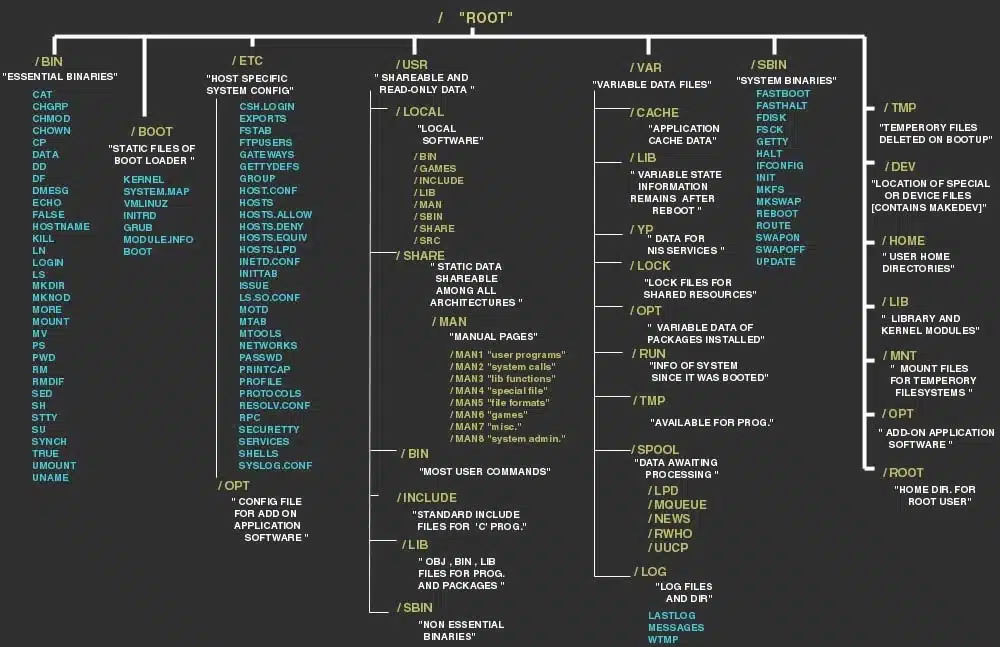
Unlike Windows, where files are stored across multiple drives (C:, D:, etc.), Linux follows a hierarchical file system. Everything starts from the root directory (/), and all files and directories branch out from there.

Here is an overview of the most important directories:

  • / (Root Directory) – The base of the file system.
  • /bin – Essential binaries and command-line programs.
  • /boot – Contains bootloader files and the Linux kernel.
  • /dev – Device files, including hard drives and peripherals.
  • /etc – System configuration files.
  • /home – Home directories for users.
  • /lib – Shared libraries required by system programs.
  • /mnt – Mount point for temporary file systems.
  • /opt – Optional software packages.
  • /proc – Virtual file system for system processes.
  • /root – Home directory for the root user.
  • /sbin – System binaries (commands for system administrators).
  • /tmp – Temporary files.
  • /usr – User-installed applications and files.
  • /var – Variable files like logs and caches.

Navigating the Linux File System

To move around the Linux file system, you need to be comfortable with the command line. Below are some essential commands:

Viewing and Navigating Directories

  • pwd – Displays the current directory path.
  • ls – Lists files and directories.
  • cd <directory> – Changes to the specified directory.
    • Example: cd /home/user/Documents
  • cd .. – Moves up one level in the directory tree.
  • cd / – Moves to the root directory.

File and Directory Management

  • mkdir <directory> – Creates a new directory.
    • Example: mkdir myfolder
  • rmdir <directory> – Removes an empty directory.
  • rm -r <directory> – Deletes a directory and its contents.
  • touch <file> – Creates a new empty file.
    • Example: touch myfile.txt
  • cp <source> <destination> – Copies files and directories.
  • mv <source> <destination> – Moves or renames files and directories.
  • rm <file> – Deletes a file.

Viewing File Contents

  • cat <file> – Displays the file's contents.
  • less <file> – Views the file page by page.
  • head <file> – Shows the first 10 lines of a file.
  • tail <file> – Shows the last 10 lines of a file.

File Permissions and Ownership

Each file and directory in Linux has a set of permissions that define who can read, write, and execute them. Use the ls -l command to check permissions:

Example output:

-rw-r--r--  1 user user  4096 Jan 1 12:00 myfile.txt

Breakdown:

  • rw- (Owner: Read & Write)
  • r-- (Group: Read only)
  • r-- (Others: Read only)

Changing Permissions

Use the chmod command to modify permissions:

  • chmod 755 myscript.sh – Gives execute permission to the owner, and read/execute to others.
  • chmod +x myscript.sh – Adds execute permission to a script.

Changing Ownership

Use the chown command to change file ownership:

  • chown user:group myfile.txt – Assigns the file to a new owner and group.

Conclusion

Understanding the Linux file system and how to navigate it is crucial for anyone learning Linux. In the next part of this series, we will dive deeper into Linux package management and how to install software efficiently.

Stay tuned for Linux 101: Part 3 – Managing Software Packages in Linux!

Monday, July 1, 2024

Linux 101: Part 1 - Introduction to Linux


Linux is one of the most popular and widely used operating systems, especially among developers, system administrators, and cybersecurity professionals. Whether you're a beginner or someone looking to enhance your knowledge, understanding Linux can be an essential skill. In this first part of our Linux 101 series, we'll cover the basics of Linux, its history, and why you should consider using it.

What is Linux?

Linux is an open-source, Unix-like operating system kernel developed by Linus Torvalds in 1991. Over the years, it has grown into a complete OS thanks to contributions from developers worldwide. Unlike Windows or macOS, Linux is free and highly customizable.

Why Use Linux?

Here are a few reasons why Linux is a great choice:

  1. Open-Source & Free – Linux is free to use, modify, and distribute.

  2. Security & Stability – It is known for its robust security and minimal vulnerability to malware.

  3. Performance – Linux is lightweight and runs efficiently on both new and old hardware.

  4. Customization – You can tailor Linux to your needs with different distributions (distros).

  5. Command Line Power – The Linux terminal is incredibly powerful and useful for automation.

Popular Linux Distributions

A Linux distribution (distro) is a version of Linux that comes with different software and features. Some of the most popular ones include:

  • Ubuntu – User-friendly and great for beginners.

  • Debian – Stable and widely used in servers.

  • Fedora – Cutting-edge with frequent updates.

  • Arch Linux – Lightweight and highly customizable.

  • Kali Linux – Designed for security testing and ethical hacking.

Basic Linux Terminology

Before diving deeper, it's good to understand some common Linux terms:

  • Kernel: The core of the Linux operating system that manages hardware.

  • Shell: A command-line interface that allows users to interact with the OS.

  • Terminal: A program that provides access to the shell.

  • Package Manager: A tool to install and manage software (e.g., apt for Debian-based distros, dnf for Fedora, pacman for Arch).

  • Root: The superuser account with full control over the system.

How to Get Started with Linux

  1. Choose a Distro – Ubuntu is recommended for beginners.

  2. Create a Bootable USB – Use tools like Rufus or Balena Etcher to create a Linux live USB.

  3. Try a Live Session – Most distros allow you to run Linux without installing it.

  4. Install Linux – If you decide to install, follow the guided installation process.

  5. Explore the Terminal – Get familiar with basic commands like ls, cd, mkdir, rm, and man.

Next Steps

In the upcoming parts of this series, we will explore:

  • Linux file system structure

  • Basic command-line operations

  • User and permission management

  • Package management

  • Networking and security essentials

Stay tuned for Linux 101: Part 2, where we will dive into the Linux file system!

Final Thoughts

Linux is a powerful and versatile operating system that can benefit everyone, from casual users to IT professionals. Learning Linux will not only improve your technical skills but also open doors to various career opportunities in IT, cybersecurity, and software development.

If you have any questions or suggestions, feel free to leave a comment below. Happy learning!